How to Record the Front and Back Camera at the Same Time on iPhone
To record the front and back camera at the same time on iPhone, use Dual Capture if you have an iPhone 17, iPhone 17 Pro, iPhone 17 Pro Max, iPhone Air, iPhone 18 Pro or iPhone 18 Pro Max: open Camera, choose Video, tap the camera-controls button, then tap Dual Capture. On older iPhones, use a third-party camera app with a front and back mode, which works when the iPhone reports multi-camera support to apps. Dual Capture saves one video with your face in a corner. Some apps, ContentCam included, save the two cameras as two separate files.
Why bother? Reactions, unboxings and POV commentary only work when your face and the thing you're filming are recorded at the same moment. Film them separately and the reaction reads as fake.
This page covers the iPhone specifics: which models, which iOS versions and where the limits sit. For every way to do it on iPhone and Android, including the free options in Instagram and Snapchat, start with the main guide to using the front and back camera at the same time.
Which iPhones can record the front and back camera at the same time?
It depends on which app does the recording. As of 4 October 2026:
- Apple's Camera app (Dual Capture): six models, per Apple's iPhone User Guide: iPhone 17, iPhone 17 Pro, iPhone 17 Pro Max, iPhone Air, iPhone 18 Pro and iPhone 18 Pro Max. The iPhone 17 specs page lists Dual Capture at up to 4K Dolby Vision at 30 fps.
- Third-party camera apps: Apple added AVCaptureMultiCamSession, the system feature that lets an app run more than one camera at once, in iOS 13. Older iPhones can only do it if they report multi-camera support to the app.
- Snapchat's Dual Camera: Snapchat's help centre lists iPhone XS, XS Max, XR or later.
Two limits catch people out. Dual Capture records one file with your face baked into the frame, and third-party apps on iPhone record two cameras at HD rather than 4K. Both are covered in detail in iPhone 17 Dual Capture and where it stops.
What it's actually good for
A few formats live or die on having both cameras at once:
- Reactions. Your face over the clip, video, or message you're reacting to. The timing has to be real, and it only is when both record together.
- Unboxings and demos. Your hands on the product from the rear camera, your face reacting from the front. One take, no cutting between two clips.
- POV with commentary. Show the view, the meal, the workout, with you in the corner talking through it as it happens.
- Tutorials. Point the rear camera at what you're doing while your face explains it, so viewers get the steps and the person at once.
The common thread is that the two shots have to be simultaneous to work. A reaction filmed after the fact reads as fake, because it is.
How front-and-back recording works
Recent iPhones can run more than one camera at the same time. A front-and-back mode uses that: it records your rear lens and your front lens together and puts your face into the frame, usually as a smaller inset over the main shot. You press record once and both cameras roll on the same timeline, so audio and reactions stay in sync with no work in the edit.
This is a different thing from recording two rear cameras for two framings of the same scene. That's dual-lens, and it solves a different problem. Front and back is about you plus what you're seeing.
Doing it in ContentCam
ContentCam has a front-and-back mode alongside its dual-format recording. You open the app, switch to front and back, and record: your rear camera and selfie camera come out of one take. The same app also records 9:16 and 16:9 at once and has a built-in teleprompter, so the tool you use for reaction content is the same one that films a normal piece once and gives you both formats to post. The full feature list is here.
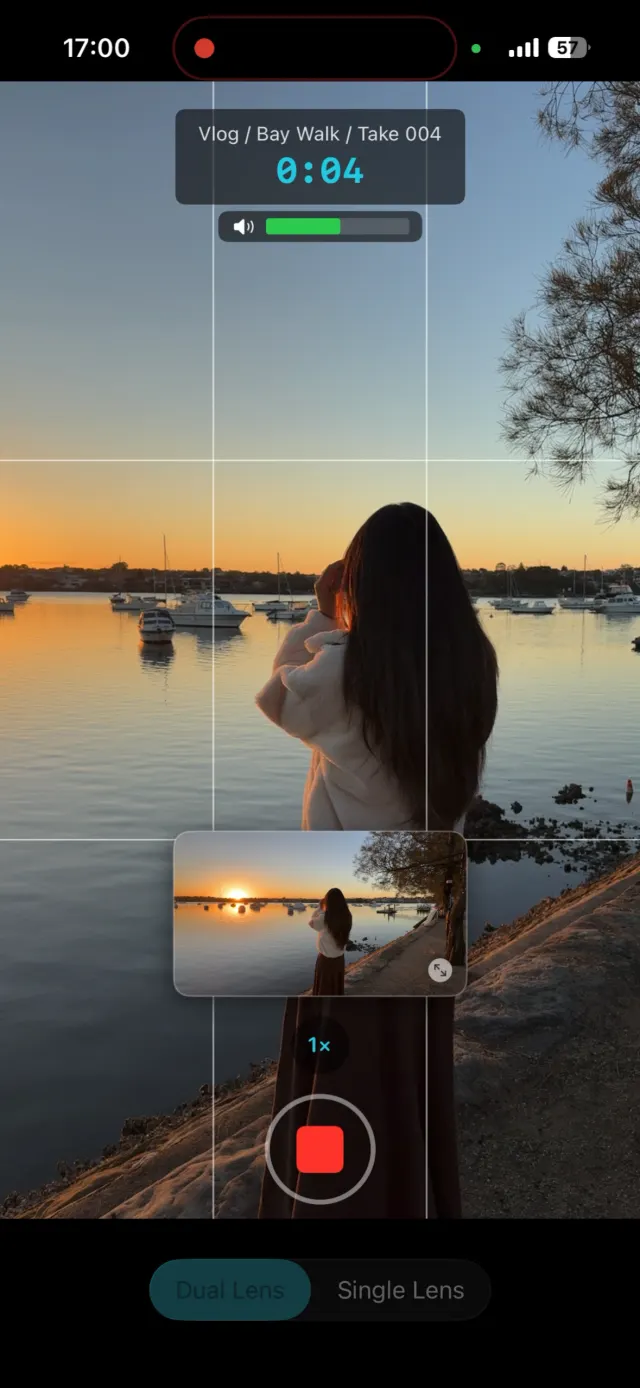
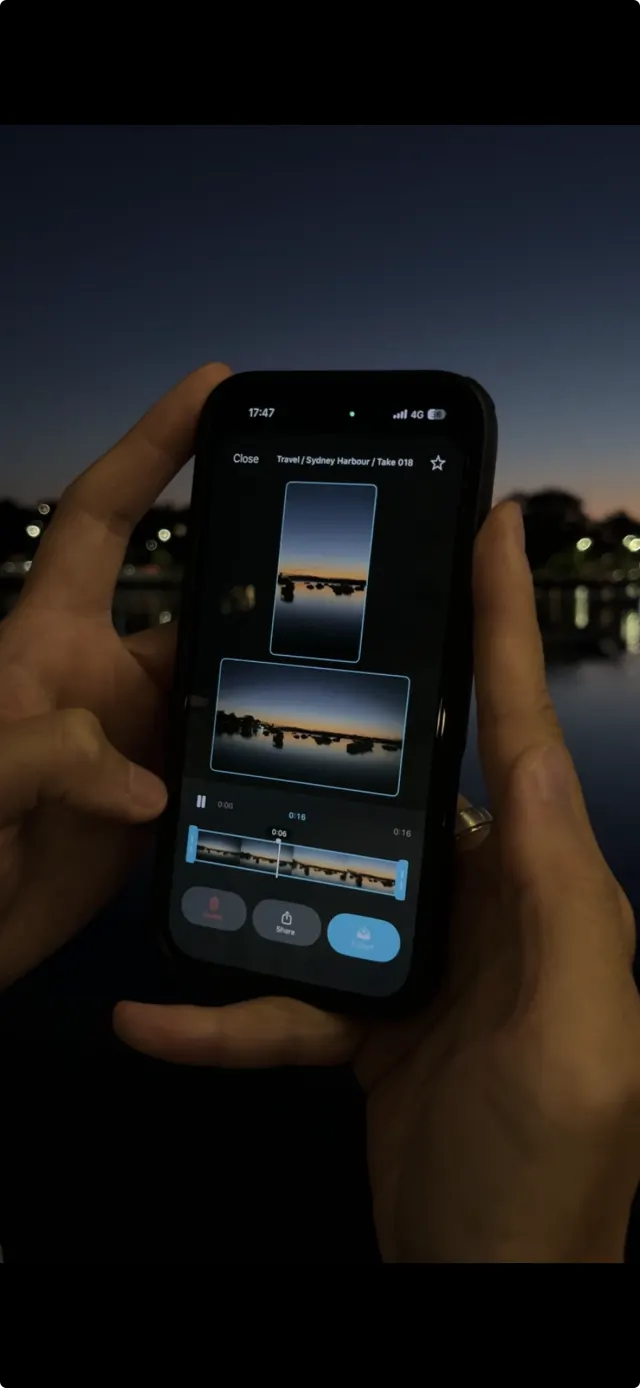
Shooting it well
The front camera is the weaker sensor and the audio is easy to get wrong, so a few things make a real difference:
- Light your face. Sit facing a window or a lamp. The selfie camera gets noisy in dim rooms faster than the rear one does, and your face is the part people watch.
- Mind the inset. Leave a clear corner for your face so it doesn't sit over the thing you're showing. Frame the rear shot with that corner already spoken for.
- Talk toward the phone. Phone mics favour whoever's closest and loudest. If you're a step back showing something, your voice drops. Keep it up, or come closer for the lines that matter.
- Lock exposure if you move. Walking from a bright window to a dark hallway makes both cameras hunt. Lock it so the shot doesn't pump. ContentCam's manual controls hold it steady.
Try ContentCam free. Front and back in one take, plus vertical and wide from a single shoot. Free to download on iPhone and Android.


Related: the full guide to using the front and back camera at the same time · recording portrait and landscape at the same time and how dual-format capture works. Also: taking a front and back photo at once · iPhone 17 Dual Capture, and where it stops · filming yourself alone on your phone