How to Record Portrait and Landscape Video at the Same Time on iPhone
Every creator who posts to more than one platform hits the same wall: TikTok, Reels and Shorts want 9:16 vertical. YouTube wants 16:9 horizontal. Same content, incompatible shapes. You end up filming the piece twice, or filming once and butchering the second version in an editor.
There are three real ways to get both formats out of one shoot. I build a camera app for a living, so I'll be upfront that my app does two of them, but the trade-offs below apply whatever tool you use.
Option 1: Film portrait, crop landscape in post
The default workflow. Record vertical, drop the clip into CapCut or Premiere, set a 16:9 sequence, and scale the portrait clip until it fills the frame.
Here's the maths problem. A 1080×1920 portrait clip cropped to 16:9 gives you a 1080×607 strip, which then gets stretched to 1920×1080. You're upscaling by about three times the pixel area, from a slice that only ever contained your phone-shaped view of the scene. The result is soft, and the framing is whatever survived the chop: usually a face filling the frame with no room around it.
When it's fine: talking-head clips where the subject fills the frame anyway and the landscape version is a bonus, not a deliverable.
When it hurts: anything where the wide shot matters. Travel, vlogs, sport, product shots, anything with a background you chose on purpose.
Option 2: Record the full sensor, crop both ways at capture
Your iPhone's camera sensor isn't portrait or landscape. It's 4:3: wider than a 9:16 frame and taller than a 16:9 frame. Standard camera apps throw part of it away the moment you pick an orientation.
The smarter approach is to record the whole 4:3 frame and cut both deliverables from it at capture time:
- The 9:16 portrait crop keeps the sensor's full vertical field of view.
- The 16:9 landscape crop keeps the sensor's full horizontal field of view.
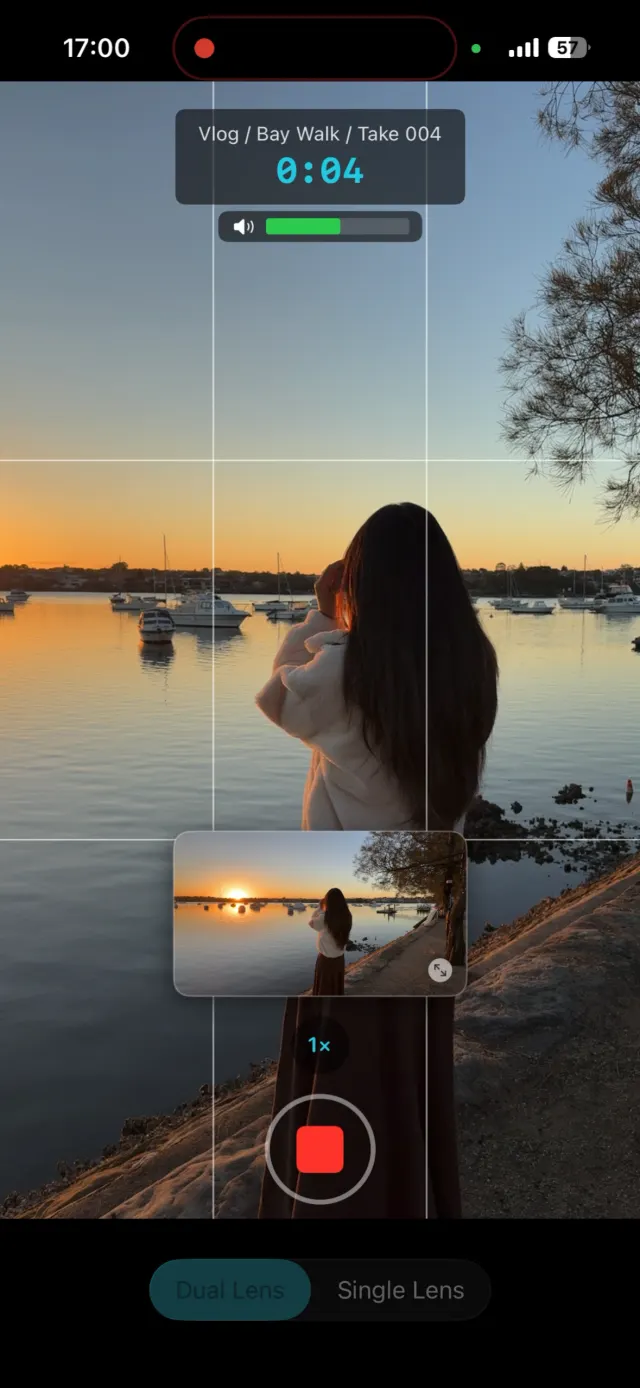
Neither file is a crop of the other. The landscape version actually shows more of the scene left and right than your portrait does, because that's what the sensor saw. This is how ContentCam's Single Lens mode works, and both files encode independently: 1080×1920 and 1920×1080 HEVC, or 4K equivalents. No upscaling anywhere in the chain.
Option 3: Record two cameras at once
iPhone 11 and later can run two rear cameras simultaneously. ContentCam's Dual Lens mode uses this: the wide lens records your portrait while the ultra-wide records landscape, at the same instant.
The difference from option 2 is framing. With full-sensor capture, both files show the same scene at different widths. With two lenses, your portrait can be a tight shot while your landscape is a genuinely wide establishing shot. For a piece to camera in an interesting location, that's two different shots from one take.
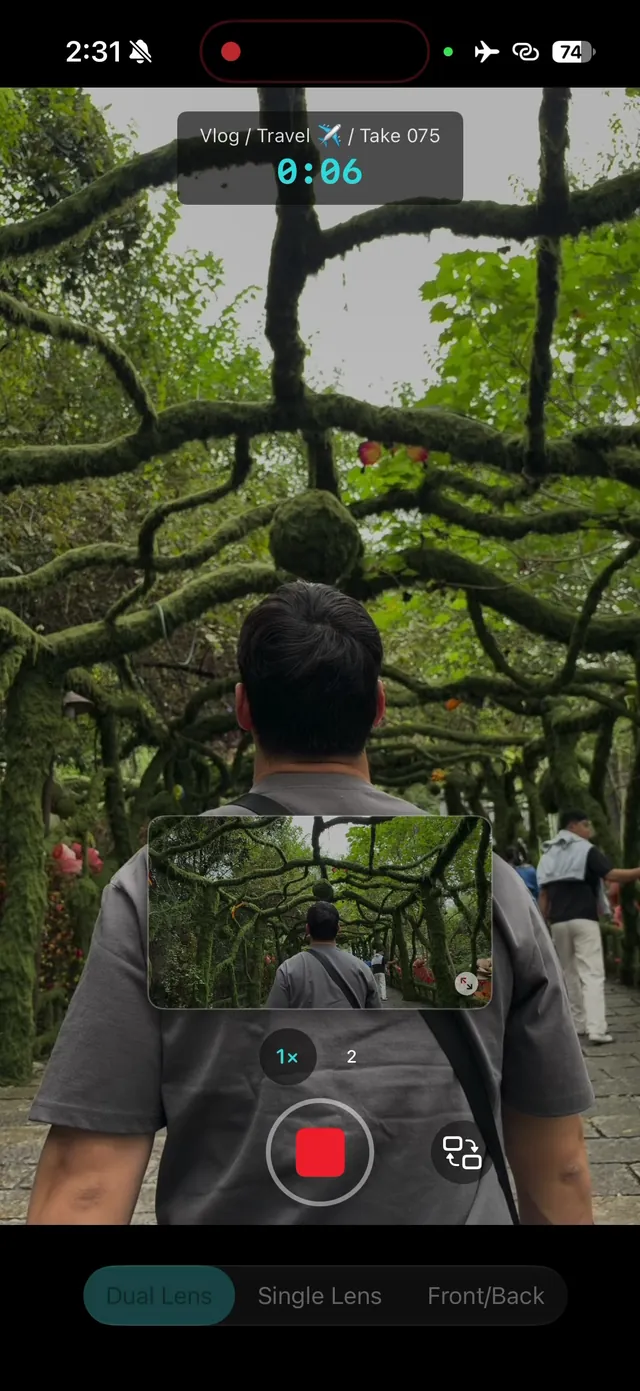
The honest limits: it runs at 1080p (Apple caps simultaneous two-camera capture at 1920x1440 on every current iPhone), and running two cameras uses more battery. Apple's own Camera app gets past that cap with iPhone Dual Capture, at 4K30, but only for the front and rear cameras together and only as one picture-in-picture frame.
How do you record landscape video on an iPhone?
Turn the phone sideways and the Camera app records 16:9 landscape. That is the whole answer for a single format, and it is why the question usually comes with a second one attached: what happens when you also need the vertical version. Rotating the phone gives you one or the other, and cropping a vertical out of that landscape afterwards keeps only about 32% of the width. The single-format steps, Lock Rotation and fixing a clip filmed the wrong way are in how to record landscape video on iPhone.
If you need both, record the full sensor once and take both framings out of it at capture, which is Option 2 above. The landscape file stays a real 16:9 recording rather than a crop, and the portrait one keeps its full height.
Which one should you use?
| Your situation | Best option |
|---|---|
| Talking head, face fills frame, landscape is secondary | Crop in post is fine |
| Both versions need to look intentional | Full-sensor capture (option 2) |
| You want different framing per platform | Dual Lens (option 3) |
| You need 4K in both formats | Full-sensor capture, it's the only one that can |
| Front camera | Full-sensor capture (works on the selfie cam) |
Step by step in ContentCam
- Open ContentCam and pick Single Lens, Dual Lens or Front & Back at the bottom of the record screen.
- Frame your shot. The landscape preview tile shows what the 16:9 version sees, so check both before rolling. Grid, crosshair and level overlays help here.
- Record. One button, both files.
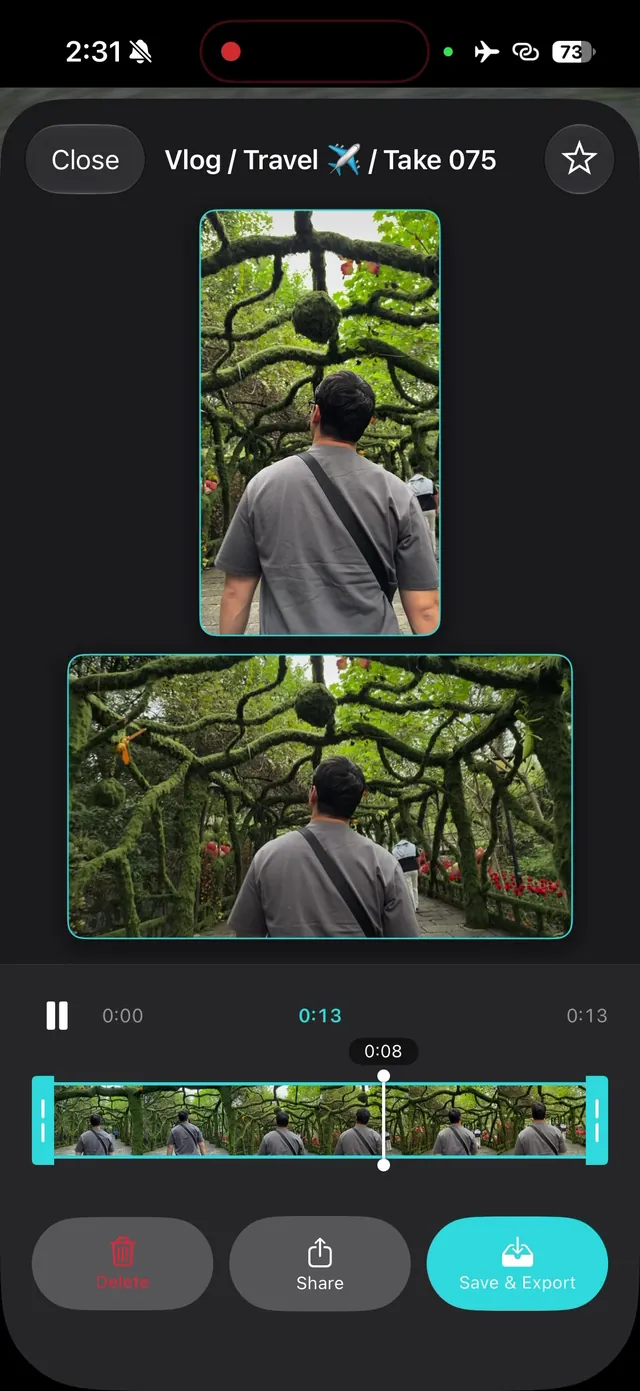
- Stop, and the review screen shows portrait and landscape side by side. Save both, or delete the take and go again.
- Files are auto-named (
my_project_scene_001_Portrait.movand_Landscape.mov) so you can't mix them up in the edit.
The free tier does all of this at 1080p with the single lens, no watermark. Premium adds Dual Lens, 4K and 60fps.
On Android?
Same problem, same fix. ContentCam for Android records both formats from the full sensor too, with manual white balance, ISO and shutter on phones that support them. The Android version of this guide covers what Samsung Camera and Pixel Camera can and can't do here.
Stop filming everything twice. ContentCam is free on both stores; record a take and look at both files before deciding anything.


Related: Vertical vs horizontal video: which should you shoot? · How to film for TikTok and YouTube at the same time · Dual-format recording apps compared · How to record landscape video on iPhone