Mobile Videography: 8 Habits That Make Phone Video Look Pro
The phone in your pocket shoots better video than most cinema cameras did a decade ago. The gap between footage that looks pro and footage that looks like "phone video" almost never comes down to the phone, it comes down to eight habits, most of which are free and take seconds. Here they are, roughly in order of how much they'll change your footage.
1. Light the face, not the room
This is the whole game for lifestyle and beauty content. Face a window or a lamp so the light falls on you, not behind you. Backlight, a bright window behind your head, is the single most common reason creator footage looks amateur: the camera exposes for the window and leaves your face in shadow. Turn around. Soft, front-on light flatters skin and hides sensor noise. If you can, film near a big window in the hour after sunrise or before sunset, when the light is soft and warm.
2. Lock your white balance
Auto white balance drifts. You move your hand, a colour shifts in frame, and the camera re-guesses, so skin tone pulses between warm and cool across a clip, which reads as "off" even to people who can't name why. Set it once and lock it. A rough guide in kelvin: warm indoor bulbs sit around 3000K, daylight around 5500K, open shade up near 7000K. Beauty creators especially should lock it, because true-to-life skin and product colour is the whole product.
3. Follow the 180 degree shutter rule
Motion in video should have a little natural blur, that's what makes it look like film instead of a stuttery security cam. The rule: set your shutter speed to roughly double your frame rate. Shooting 30fps? Use 1/60. Shooting 60fps? Use 1/120. If your footage looks weirdly sharp and juddery when you move, this is why. (There's a fuller explainer in manual camera controls for video.)
4. Lock exposure before you move
If you walk, pan, or the light changes mid-shot, auto exposure hunts, the image brightens and darkens as it re-decides. Lock it to your subject before you start moving and the shot stays steady. This one habit instantly separates deliberate footage from run-and-gun.
5. Frame for the centre, always
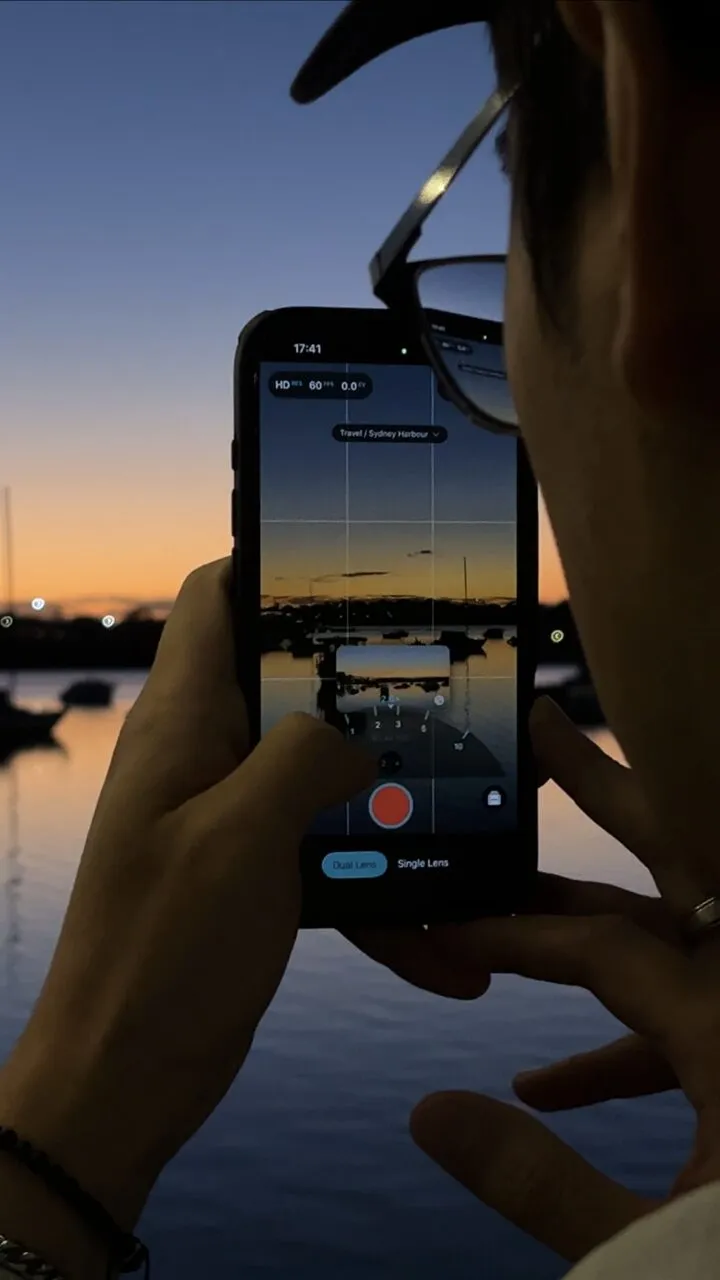
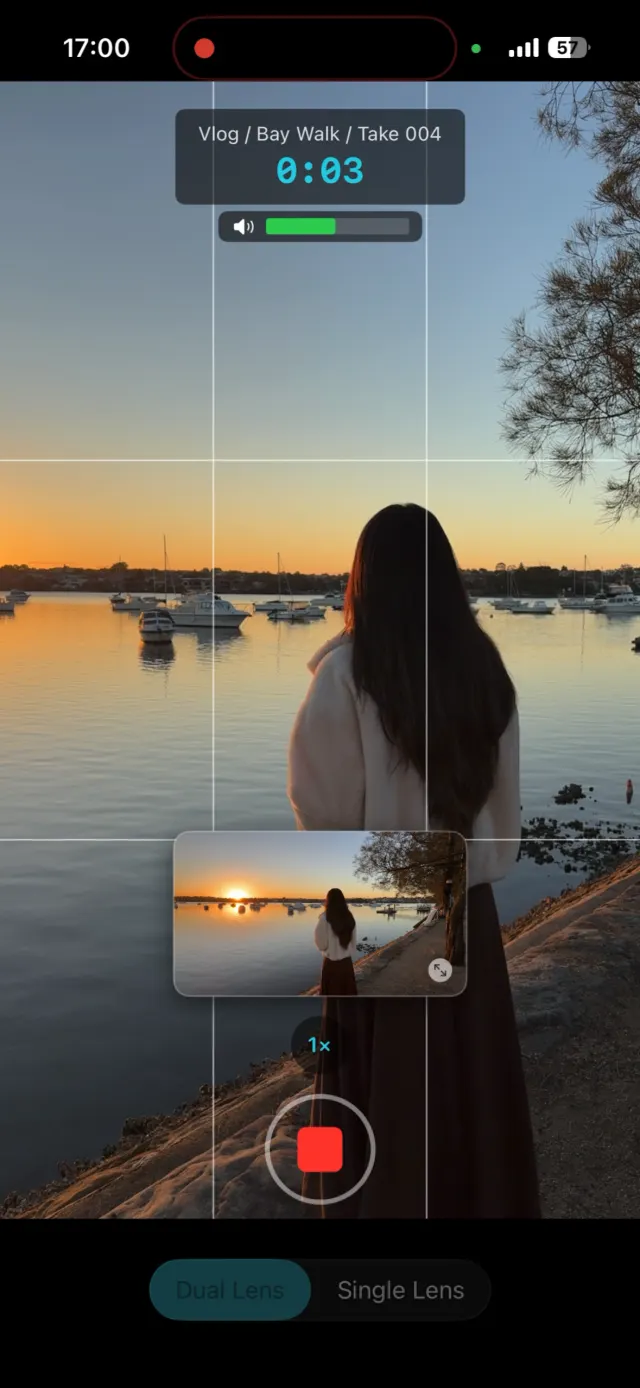
Keep your subject in the middle third of the frame. It's more forgiving of small movements, and, critically, it means one capture survives being cropped to any shape. If you post to both vertical and wide platforms, centre framing is what lets a single shot work in both without reframing. Better yet, capture both formats at once so there's no crop at all.
6. Get the audio closer than you think
Viewers forgive rough video; they leave on rough audio. Phone mics favour whoever's closest, so close the distance, a metre makes a real difference. Film indoors with soft furnishings to kill echo, avoid air-con and traffic, and if you're serious, a cheap clip-on mic beats any in-camera setting. Talk toward the phone, not off to the side.
7. Stabilise, but don't rely on it
Turn stabilisation on, it's usually free and it cleans up handheld motion. But it isn't magic: brace your elbows against your body, move your whole body instead of just your wrists, and take slow, deliberate steps. A tripod or even a wall for your elbow does more than any software.
8. Shoot once for every platform
The last habit is a workflow one. Every reshoot is a chance for the light to change, the moment to pass, or the energy to drop. So capture in a way that serves every platform from one take: frame for the centre, get the vertical and the wide together, and lock your settings so both files match. That's the reason ContentCam exists, one recording gives you a 9:16 for TikTok, Reels and Shorts and a 16:9 for YouTube, full frame both ways, with the manual controls above built in and no watermark on any of it.
Try ContentCam free, lock exposure, white balance, ISO and shutter, and capture vertical and wide in one take. No watermark, iPhone and Android.


Related: holding your phone steady, filming video in low light, manual camera controls explained (ISO, shutter, white balance), lighting a video with no windows, filming a two person interview with one phone, filming travel and food for every platform, and shooting for TikTok and YouTube at once, plus the Blackmagic Camera app settings explained and filming a talking head at home without the webcam look and filming b-roll that works vertical and wide.