How to Convert Vertical Video to Horizontal: iPhone, iMovie and CapCut
To convert a vertical video to horizontal, put it on a 16:9 canvas and decide what fills the sides. There are two ways. Crop: zoom the clip until it fills the width, which keeps 31.6% of the picture and cuts off the top and bottom. Fill: keep the whole clip in the middle and fill each side with black bars, a colour or a blurred copy of the clip. On iPhone, the Photos app can only crop. iMovie can crop or leave black bars. CapCut does the blurred fill. Rotating the clip does not convert it; it only turns the picture on its side.
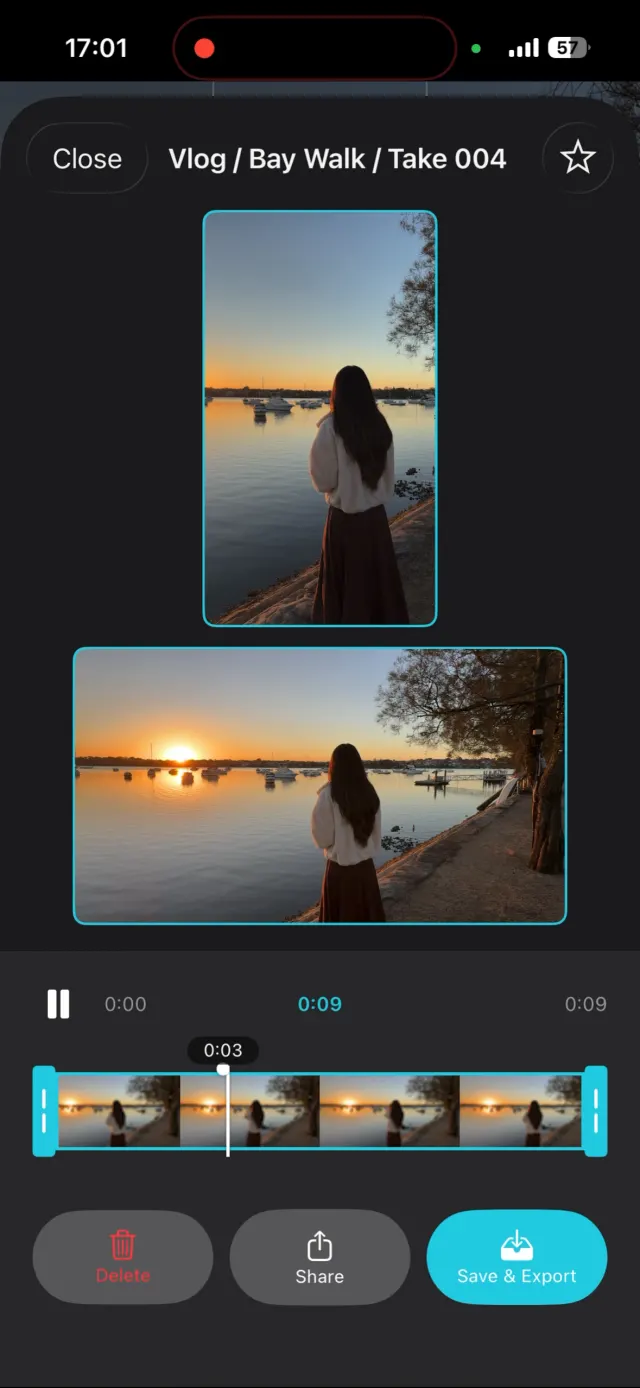
Should you crop or fill when converting vertical to horizontal?
Crop when the clip is one face or one object near the centre. Fill when the whole frame matters. The numbers below are for a 1080 × 1920 vertical clip going into a 1920 × 1080 horizontal frame.
| Method | What you keep | What it costs | Use it for |
|---|---|---|---|
| Crop to fill | A 1080 × 607 strip, 31.6% of the picture | The top and bottom of the frame, and the strip is scaled up 1.78 times to fill 1920 × 1080 | A single talking head, filmed loosely |
| Black bars (pillarbox) | The whole picture | The picture is 607 pixels wide; the other 1,313 pixels of width are black | Phone footage inside a YouTube edit, news-style |
| Blurred fill | The whole picture | Same size as black bars; the sides show a blurred, enlarged copy of the clip | When black bars look unfinished |
A blurred fill changes what the empty space looks like. It does not make the picture any bigger. Why the cropped version looks wrong even when the face survives, and the arithmetic behind 31.6%, is in why cropping vertical video to horizontal looks wrong. This page is the how-to.
One exception makes cropping work well: a 4K vertical clip. Cropped to 16:9 it leaves a 2160 × 1215 strip, which is larger than 1920 × 1080, so the result scales down into real 1080p instead of being stretched up.
How do you convert vertical video to horizontal in iPhone Photos?
By cropping. It is the only conversion Photos can do.
- Open the video in Photos and tap Edit.
- Tap Crop.
- Tap the lock at the top right of the frame so the crop is no longer held to the original shape.
- Drag the corners until the frame is wide, then drag the picture up or down so the eyes sit about a third of the way from the top.
- Tap Done. To undo it later, open the video, tap Edit, then Revert.
Photos has no way to put a vertical clip on a wider background, so if you want the whole picture in a 16:9 frame you need an editor. Don't use Rotate for this. Each tap turns the video 90 degrees, which is the fix for a clip that plays on its side, not for one filmed upright. That case is covered in how to record landscape video on iPhone.
How do you convert vertical video to horizontal in iMovie on iPhone?
A movie project in iMovie is widescreen, so adding a vertical clip already gives you a horizontal video. What you control is how the clip fills the frame. If it shows with black bars down each side and you are happy with that, export it as it is. To crop it to fill the width instead, use the Zoom Control, following Apple's steps:
- Open a movie project and add the vertical clip.
- Tap the clip in the timeline to select it.
- Tap the Zoom Control button in the viewer.
- Pinch to zoom until the clip fills the width, then drag the image to frame it. Pull it down so the eyes are not cut off.
- Tap Play to check it, then export.
Apple's iMovie for iPhone guide lists no blurred background option, so for that look use CapCut.
How do you convert vertical video to horizontal with a blurred background in CapCut?
- Start a new project and add the vertical clip.
- Open the Ratio or Aspect ratio option in the bottom toolbar and choose 16:9. The clip now sits in the middle with empty space on both sides.
- Open Canvas (called Background in some versions) and choose Blur. Pick a strength and apply it to all clips if you have several.
- For a crop instead, skip the blur and pinch the clip in the preview until it fills the frame.
- Export at 1080p.
CapCut renames and moves these menus between versions, so look for those words rather than an exact position. Some editors also offer auto-reframe, which slides a crop window around to follow a face. It picks a better crop, but it still keeps 31.6% of the frame, and it loses one subject when two people stand at opposite edges.
Which method should you use for each platform?
- YouTube long-form: blurred fill for a short phone clip inside a wider edit. Crop only if the source is 4K or the shot is a centred face.
- A TV, a projector or a slideshow: black bars or blur. A cropped 1080p vertical clip looks soft on a big screen because it was scaled up 1.78 times.
- TikTok, Reels and Shorts: don't convert. They are vertical, so upload the original.
If the clip came from the iPhone's built-in Dual Capture, cropping it to horizontal usually cuts off the selfie window in the corner. iPhone Dual Capture and its limits explains why that inset is fixed in the frame.
How do you avoid converting at all?
Decide before you film. If one shot has to go out both ways, either film the vertical at 4K and frame it loosely, with the eyes and the action in the middle third of the frame, or record both shapes at once. I built ContentCam for the second option: it records a 9:16 file and a 16:9 file from the same take on iPhone and Android, both cut from the camera's full 4:3 sensor frame, so the horizontal version is a wide shot rather than a crop of the vertical one. The framing rules that make a single take survive both shapes are in how to film for TikTok and YouTube at the same time.
FAQ
Can you convert a vertical video to horizontal without losing anything?
No. Either you crop, which keeps 31.6% of the picture, or you keep the whole picture and fill the sides, which leaves it 607 pixels wide in a 1920 pixel frame. A 4K vertical clip is the exception that crops well: the 2160 by 1215 strip is still bigger than 1080p.
Does rotating a video make it horizontal?
Only if it was filmed sideways and plays on its side. Rotating an upright vertical clip by 90 degrees turns the picture on its side; it does not widen it.
How do I add a blurred background to a vertical video?
In CapCut, set the project ratio to 16:9, then choose Blur from the Canvas or Background menu. The clip stays whole in the middle and a blurred, enlarged copy of it fills the sides.
Can I convert vertical video to horizontal on iPhone without an app?
Only by cropping. The Photos app can crop a vertical clip to a wide shape, but it cannot put the clip on a wider background. For black bars or a blurred fill you need an editor such as iMovie or CapCut.
Try ContentCam free. Records vertical and horizontal in one take, so there is nothing to convert afterwards. Free to download on iPhone and Android.


Related: why cropping vertical to horizontal looks wrong · vertical vs horizontal video, and which to shoot · how to record portrait and landscape at the same time on iPhone · how to record landscape video on iPhone.